
AI-powered Document Understanding for Enterprise
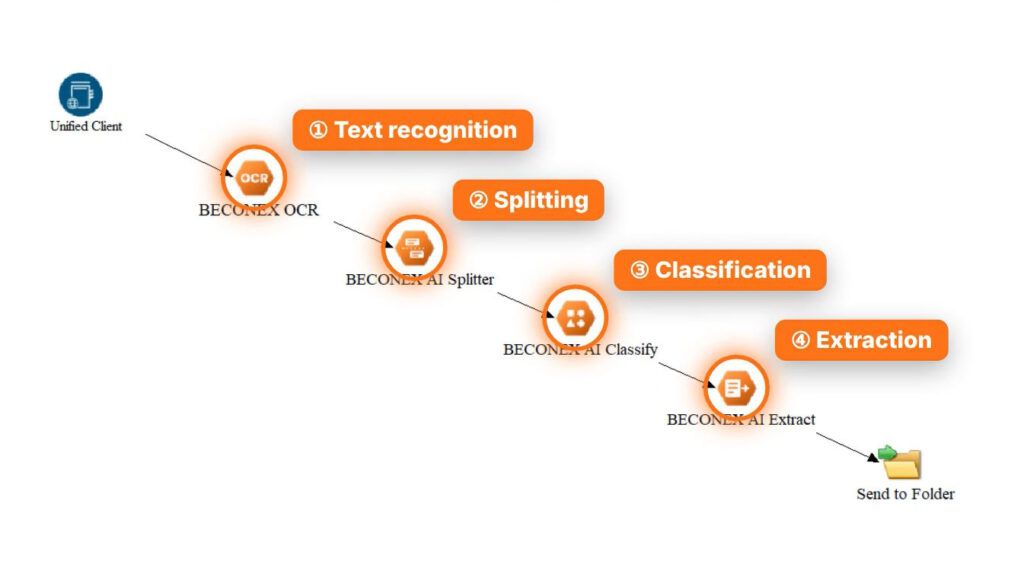
The BECONEX AI Suite adds three AI-driven capabilities to your document processing workflows. Each runs on a local language model in your network.
“Split” separates scanned batches into individual documents, “Classify” assigns each document a class, and “Extract” reads the fields you define.
Enhance your operations with AI-powered document understanding.
Three Processing Steps, One AI-Chain
Split
Finds where one document ends and the next begins in a scanned batch. Each found document becomes its own item in the workflow.
Classify
Assigns each document one class from a predefined list, with a confidence value.
For batch processing, Split must come before Classify.
Extract
Reads the fields for the class (or all fields if no class given) and returns a value and confidence per field. Empty where no value is found.
How to configure a "Document Understanding" Workflow
The BECONEX AI Suite runs on the Tungsten (Kofax) AutoStore platform. You configure each step in its dedicated dialog, like any other process component.
The GPU server address, the language model, time limits, and allowed retries.
- Test each step’s performance and end-to-end chain with a sample batch from your own documents before production.
- Changing the model affects how sure it sounds; re-check every threshold after a model change.
- Do not rename the output variables; downstream workflow steps depend on them.
Standard AutoStore steps can use the values for further document handling tasks. These may include:
- Building folder paths and file names,
- Writing index data,
- Routing documents and data to SAP or another document management system, etc.
Batch Splitting
Set up a confidence threshold and decide when the proposed separation is presented to a reviewer before the batch continues – every time or only in case of uncertainty.
Every document in the batch remains parked until the review is completed.
- Each document as its own item,
- Decision per page (belongs to previous document or starts a new one),
- Confidence value for each decision
Document Classification
Define your list of document classes and the confidence threshold below which a document goes to review.
The right threshold depends on the model and on the input path (scan or digital PDF). Re-check it after changing either.
- The identified class and a confidence value.
- If uncertain, the model delivers a file explaining the rationale behind the decision and documents go to a review basket.
Data Extraction
Configure the fields to read, and whether to take the class from the Classify component.
To obtain better results, define only fields that really appear in the document.
Clear field names give clearer results.
- The value detected for each configured field as a workflow variable,
- The field’s confidence.
Frequently asked Questions
Yes. Each component can be selected at installation and work on its own. For batch classification, Split must come before Classify. Extract uses the class from Classify when it is present, and reads all configured fields otherwise.
Uncertain results go to a human reviewer. The results can be confirmed or adjusted during the review process. Batches and documents are kept on hold until they are approved by the reviewer. Only then are they sent to subsequent steps in the workflow.
Each field is available as a workflow variable, so your AutoStore process can name files, build folder paths, write index data, and route documents and data to SAP or other systems.